




CS 1.6 Mouse Settings – Sensitivity, Acceleration and Raw Input
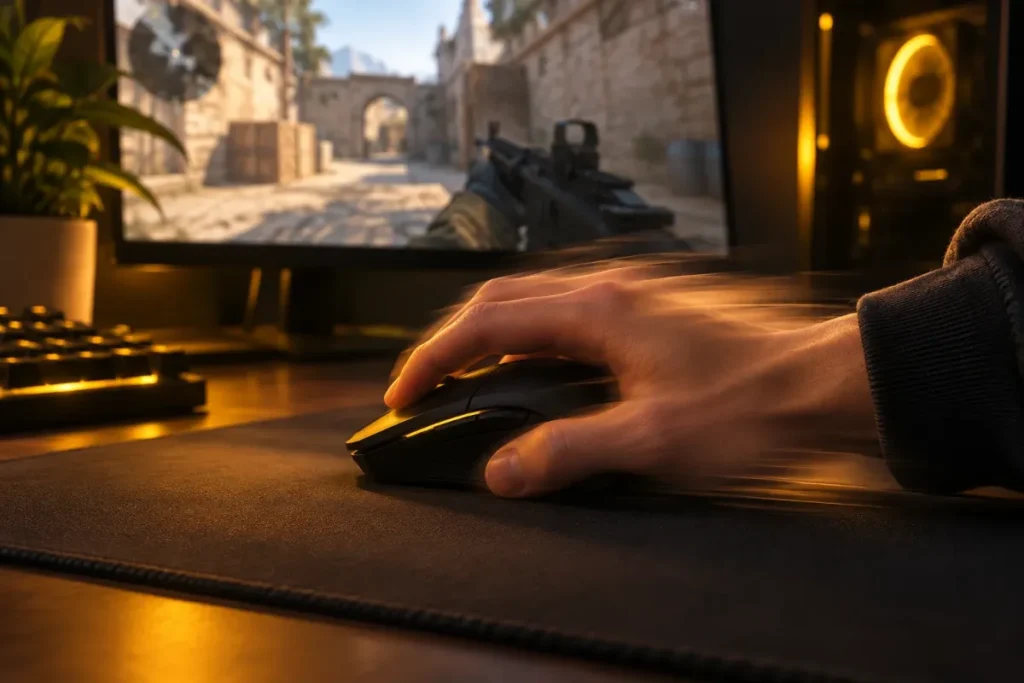
Good aim in Counter-Strike 1.6 starts with a consistent mouse. If the same hand movement turns your view by a different amount every time, no amount of practice will make your aim reliable. This guide shows the CS 1.6 mouse settings that matter and how to find a sensitivity that suits you.
The three settings that matter
- Mouse DPI – set in your mouse software or with a button on the mouse.
- In-game sensitivity – the
sensitivitycommand. - Acceleration – should be turned off in both Windows and the game.
Turn off mouse acceleration
Acceleration makes your crosshair move further when you move the mouse quickly. That feels smooth on the desktop but destroys muscle memory in a shooter.
In Windows
Open Settings → Bluetooth & devices → Mouse → Additional mouse settings → Pointer Options and untick Enhance pointer precision. Leave the pointer speed slider in the middle (6 of 11).
In the game
Newer CS 1.6 builds, including protocol 48, have a raw input option that reads the mouse directly and ignores Windows settings:
m_rawinput 1– use raw mouse input (recommended).m_filter 0– no mouse smoothing.
Older builds without raw input use launch parameters to disable acceleration. In that case add -noforcemparms -noforcemaccel -noforcemspd to the game shortcut (Properties → Target, after the quotes).
Choosing your sensitivity
What really matters is your eDPI: mouse DPI multiplied by the in-game sensitivity. Two players with 400 DPI × sensitivity 2.5 and 800 DPI × sensitivity 1.25 have the same eDPI of 1000 and the same feel.
| Style | Typical eDPI | Example |
|---|---|---|
| Low (arm aiming, AWP) | 600–900 | 400 DPI × 1.8 |
| Medium (most players) | 900–1300 | 800 DPI × 1.4 |
| High (wrist aiming) | 1300–2000 | 800 DPI × 2.2 |
Lower sensitivity makes small adjustments easier and is preferred by most competitive players. Higher sensitivity helps on small desks and in close-range modes such as Zombie or Jailbreak.
A simple way to find your sensitivity
- Start an offline game on de_dust2 with no bots.
- Place the mouse at the left edge of your mouse pad and aim at a fixed point.
- Move the mouse to the right edge in one smooth motion. A good starting point is a turn of about 180–360 degrees.
- Adjust
sensitivityin steps of 0.1 until it feels comfortable, then stick with it for at least a week.
Zoom sensitivity for the AWP and Scout
The command zoom_sensitivity_ratio changes how fast you turn while scoped. The default value of 1.2 suits most players; lower it to 1.0 if scoped aim feels too fast.
Recommended mouse commands
Paste these lines into your userconfig.cfg file in the cstrike folder and change the sensitivity to your own value:
sensitivity 2.0
m_rawinput 1
m_filter 0
zoom_sensitivity_ratio 1.2
Hardware tips
- Use a mouse with a reliable optical sensor and a polling rate of 500–1000 Hz.
- A large cloth mouse pad gives consistent glide, which matters more than an expensive mouse.
- Keep the mouse feet and pad clean: dust makes movement uneven.
FAQ
What sensitivity do pro CS 1.6 players use?
Most played with low sensitivity on 400 DPI mice, often with an eDPI between 700 and 1200.
Why does my mouse feel different in CS 1.6 than in CS2?
The games use different sensitivity scales and CS 1.6 may still use Windows acceleration if raw input is off. Enable m_rawinput 1 and compare again.
Does FPS affect mouse feel?
Yes. Low or unstable FPS makes the mouse feel heavy. Keep a stable 100 FPS with fps_max 100.
Continue with our guides to crosshair settings and key binds.
